

Chat with WordPress for free using Gemini
MazeGraphUpdated
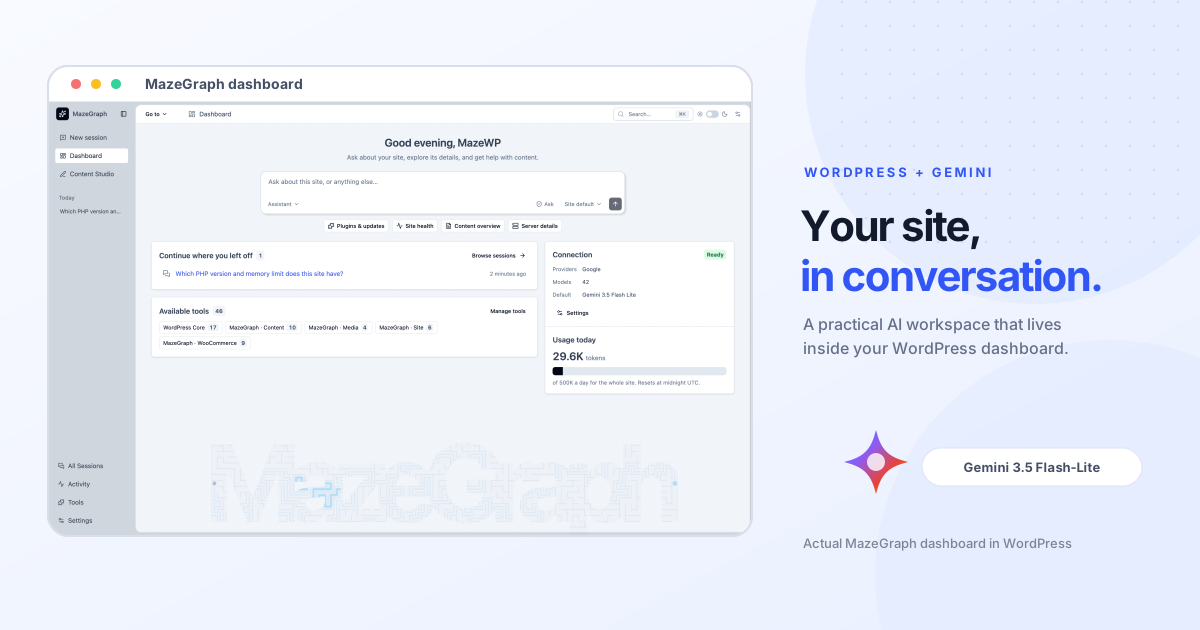
Want to ask questions about your WordPress site using Gemini without connecting a desktop AI app or setting up an external MCP client? MazeGraph lets you start a conversation from your WordPress dashboard. It uses WordPress’s AI Client and the official AI Provider for Google connector to pass requests to Gemini.
MazeGraph and the Google connector are free to install. Google currently lists Gemini 3.5 Flash-Lite’s Standard API tier as free of charge, subject to Google’s quotas and availability. That does not make every request unlimited or private: on Google’s unpaid API tier, Google may use submitted prompts and responses to improve its products, and human reviewers may process them. Do not send sensitive, confidential, or personal information through the unpaid tier. Check Google’s current model availability and pricing before you begin.
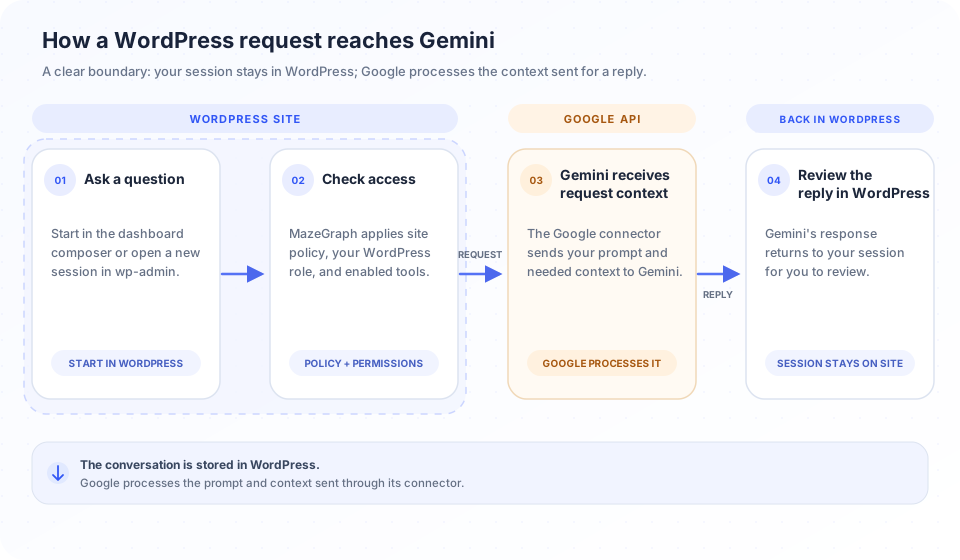
This is a WordPress-native way to chat with a site, not a promise that your data stays on the site. WordPress stores your MazeGraph sessions, while the configured provider receives the prompt and the context needed to answer it. The steps below explain how to connect the pieces, try practical prompts, and understand that boundary.
What you need
- A WordPress site running WordPress 7.0 or later, and PHP 8.1 or later.
- The free MazeGraph plugin.
- The free AI Provider for Google connector.
- A Google AI Studio API key, with Gemini API access available for your account and region.
On WordPress 7.0 and later, the AI Client and Connectors screens are part of WordPress. You do not need to install a separate AI chat plugin. The Google connector registers Google’s models with WordPress; MazeGraph uses the WordPress AI Client to request a response. Google’s connector discovers the available models dynamically, so the exact list can change.
If your site is on an earlier WordPress release, first check the connector’s current requirements and the MazeGraph installation guide. MazeGraph itself requires WordPress 7.0 or later.
Connect Gemini to MazeGraph
1. Install MazeGraph
In wp-admin, open Plugins → Add New Plugin, search for MazeGraph, then install and activate it. If you prefer to upload a ZIP downloaded from WordPress.org, follow the step-by-step installation guide.
2. Install Google’s WordPress connector
Open Settings → Connectors, or go directly to /wp-admin/options-connectors.php. Find Google and choose Install. WordPress installs the official AI Provider for Google plugin, which connects the WordPress AI Client to the Gemini API.
3. Create and save a Google API key
Create a key in Google AI Studio. Return to the Google connector in Settings → Connectors, enter the key, and save it. A connector credential is not the same thing as a Gemini web-app subscription; API access and its quotas are managed through Google’s developer service.
WordPress Connectors manages the provider credential. MazeGraph does not read, store, or display the key. If you enter a key in the Connectors screen, WordPress stores it as a setting and masks it in the interface; WordPress does not encrypt that setting. An administrator can instead configure a server environment variable or PHP constant. See WordPress’s Connectors documentation and the fuller MazeGraph provider setup guide.
4. Select Gemini 3.5 Flash-Lite
Open MazeGraph → Settings → General. Under Default model, select Google’s Gemini 3.5 Flash-Lite entry if it is available, then save the setting. New conversations use the default model; a session can use another model that WordPress makes available. If the model does not appear, confirm the Google connector is active and configured, refresh its model list, then check Google’s model availability for your account.
5. Start a session in wp-admin
Open MazeGraph → New session, read the first-message data notice, and accept it before sending your first prompt. You can also start from the dashboard composer; if consent has not yet been given, MazeGraph sends you to the notice before it sends a message. See how to start your first session for the composer, assistant, model, and permission controls.
Once connected, you can ask Gemini to use the tools enabled for your account. MazeGraph’s WordPress, site, content, media, and WooCommerce tools are governed by administrator settings and the current user’s WordPress permissions. Connecting Gemini does not grant it extra access by itself. Review who may use tools and how MazeGraph decides what may happen.
Practical prompts to try
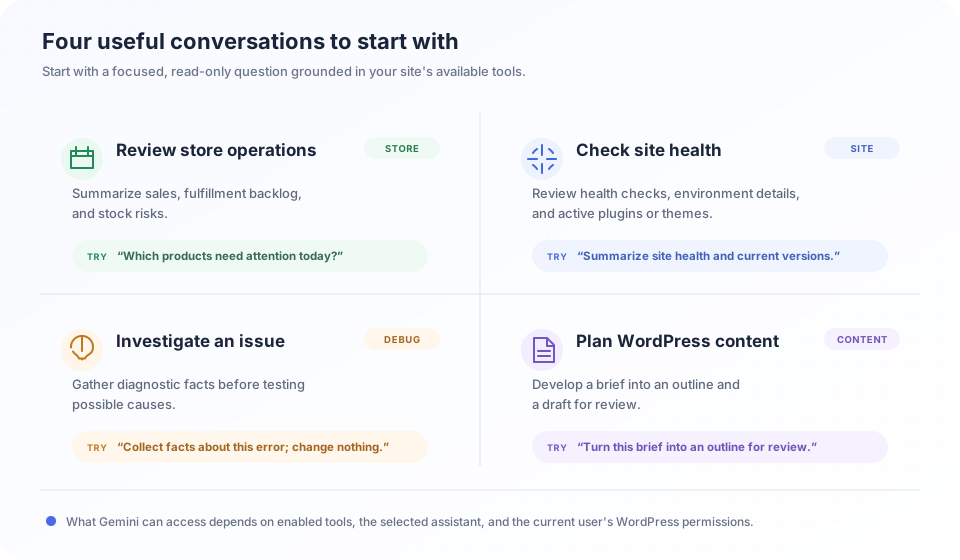
Start with questions that request a summary or investigation. The examples below are prompts to adapt, not guaranteed reports: the answer depends on which tools are enabled, the data available on the site, the user’s WordPress permissions, and the provider’s response. Ask Gemini to distinguish observed facts from suggestions, and to say when a tool could not return complete information.
Check store operations
MazeGraph’s WooCommerce tools can summarize sales, orders, fulfillment backlog, stock alerts, and product catalog details. They are designed to return bounded information. For example, order listings omit customer names, addresses, contact details, notes, and payment details; fulfillment and sales reports return aggregate figures. The sales summary can mark partial results when a large store exceeds its scan limit.
Medium prompt — stock check:
Review the WooCommerce products and stock alerts available to me. List out-of-stock items first, then products below their stock thresholds. Show product name, SKU, and stock status when available. If the scan was limited or incomplete, say so. Do not change any products.
Long prompt — weekly operations review:
Prepare a read-only WooCommerce operations summary for the last seven days. First summarize paid sales by currency and keep refunds separate from gross totals. Then report the current fulfillment backlog, including how many processing or on-hold orders are older than 24 hours and seven days. Finally, list low-stock and out-of-stock products that the available stock tools can identify. Do not include customer names, email addresses, phone numbers, postal addresses, order notes, or payment details. Do not edit anything. Organize the answer as: key findings, figures with their date range, items to review, and any scan or data limitations. If a report is partial, label it clearly instead of estimating the missing values.
Use a shorter request when you only need one answer, such as “How many processing orders are older than seven days?” For a detailed sales period, state the dates and timezone you mean. Review currency, date ranges, refunds, and any partial-scan note before using the summary in a business decision. For more examples, see review WooCommerce sales, find a fulfillment backlog, and prioritize low-stock products.
Investigate a WordPress issue
MazeGraph can use read-only site tools to inspect information such as site health checks, the WordPress environment, enabled plugins, themes, and site structure when those tools are available to the selected assistant. Ask for a diagnosis based on evidence, then verify the findings in wp-admin. Do not ask it to expose secrets from configuration files or paste an API key into chat.
Medium prompt — debug context:
Gather the relevant read-only site health and environment information available to me. Report any critical or recommended checks, the WordPress and PHP versions, and relevant plugin or theme details. Separate the tool results from your possible explanations. Do not change settings, and do not show passwords, API keys, or other secrets.
Long prompt — investigate a symptom:
I am investigating [describe the symptom and when it started]. Use only the read-only site and environment tools available to this account. Check the site health results, WordPress and PHP environment, and relevant active plugins or themes. Return a concise incident note with: (1) facts returned directly by tools, (2) possible causes clearly marked as hypotheses, (3) safe checks I can perform in wp-admin, and (4) what information is still missing. Do not change the site, disable plugins, expose credentials, or infer that a check passed if no result was returned. If you cannot inspect logs or reproduce the issue, say so.
That final instruction matters: a model can explain evidence, but it cannot turn a missing check into a verified diagnosis. For a reusable checklist, see collect debug context and troubleshoot a missing or refused tool.
Plan or draft WordPress content
Use MazeGraph’s Content Studio for a post workflow: define a brief, research and plan, review an outline, develop a draft, then optimize and hand it off to WordPress for review. You can also ask a read-only content question, such as which posts may need an update. Follow the Content Studio stages and write a useful brief.
Long prompt — prepare a draft, not a publication:
Help me create a WordPress article about [topic] for [audience]. First identify the relevant existing posts or pages available through the enabled tools and summarize any overlap. Ask me for missing product facts instead of inventing them. Propose an outline with a clear search intent, one primary reader question, and useful subheadings. Wait for me to approve the outline before drafting. In the draft, use plain language, distinguish documented facts from recommendations, and include a short checklist at the end. Do not publish the post or change existing content; prepare an editable WordPress draft for my review only after I approve the finished text.
MazeGraph does not publish posts automatically. Write tools are disabled by default, and an administrator must enable them. Ask waits for approval for every assistant write; Auto may skip the prompt only for the two marked draft operations; Full may run a supported undoable write without another prompt when policy allows. Some enabled WooCommerce tools can change a published product or trigger an order email. Content Studio also gives you review points before handing a draft off. Read approval modes and optimize and hand off a draft before enabling writing tools.
What happens to prompts and site data?
The chat opens inside WordPress, but a Gemini reply is generated by Google. WordPress’s AI Client and the configured Google connector carry the request to Gemini and return its response. Depending on the request, the provider can receive your message, relevant conversation history, site instructions, tool descriptions, and the results of tools that MazeGraph ran. A tool result can contain information from the site. A connector may also contact Google to discover available models.
MazeGraph sessions are stored in your WordPress database, and MazeGraph does not send chat data or usage analytics to MazeWP servers. That describes MazeGraph’s own data flow; it does not mean the request stays on your server. Google’s unpaid Gemini API terms say submitted content and responses may be used to improve Google products and services, and that human reviewers may read or process API input and output. Google says not to submit sensitive, confidential, or personal information to unpaid services. Review Google’s terms for unpaid services and API pricing and tiers before relying on a free quota.
For a first test, choose a low-sensitivity question about public content, basic site configuration, or aggregate store figures. Avoid prompts that could return personal customer records, private editorial plans, security details, passwords, keys, or confidential business information. Review who can use MazeGraph, which tools are enabled, and the provider data notice with your site administrator. The complete provider request data guide explains what may be sent and how the site stores MazeGraph records.
A WordPress-native setup, with an explicit provider boundary
The practical advantage is a simple setup: install MazeGraph, connect Google’s WordPress provider plugin, choose a model, and chat from wp-admin. You do not need to configure a separate MCP desktop client or remote connection for this workflow. Administrators can still enable MazeGraph’s optional MCP feature separately, but it is not needed for a normal session inside WordPress.
This approach keeps the workspace, access controls, tool permissions, and saved MazeGraph conversations in your WordPress environment. It does not keep Gemini’s processing local: Google receives the context needed to answer, under the terms of the API tier you chose. Check that boundary against the information on your site, then begin with a focused read-only question. When a report is important, verify its figures in WooCommerce or WordPress before acting on it.