

An AI workspace built around WordPress
MazeGraph brings site-aware conversations, administrator-controlled tools, and an approval-first Content Studio into wp-admin.
Workspace
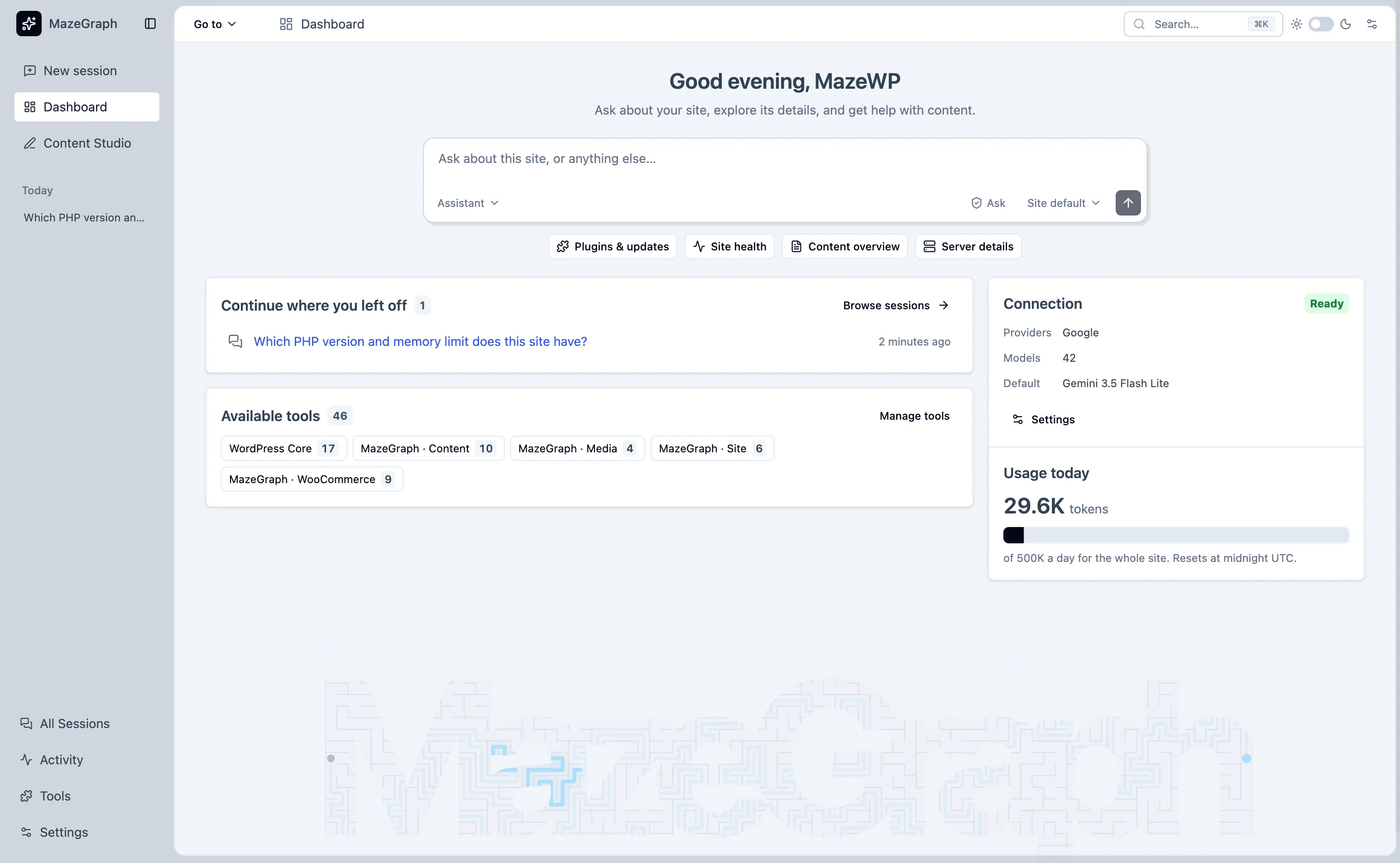
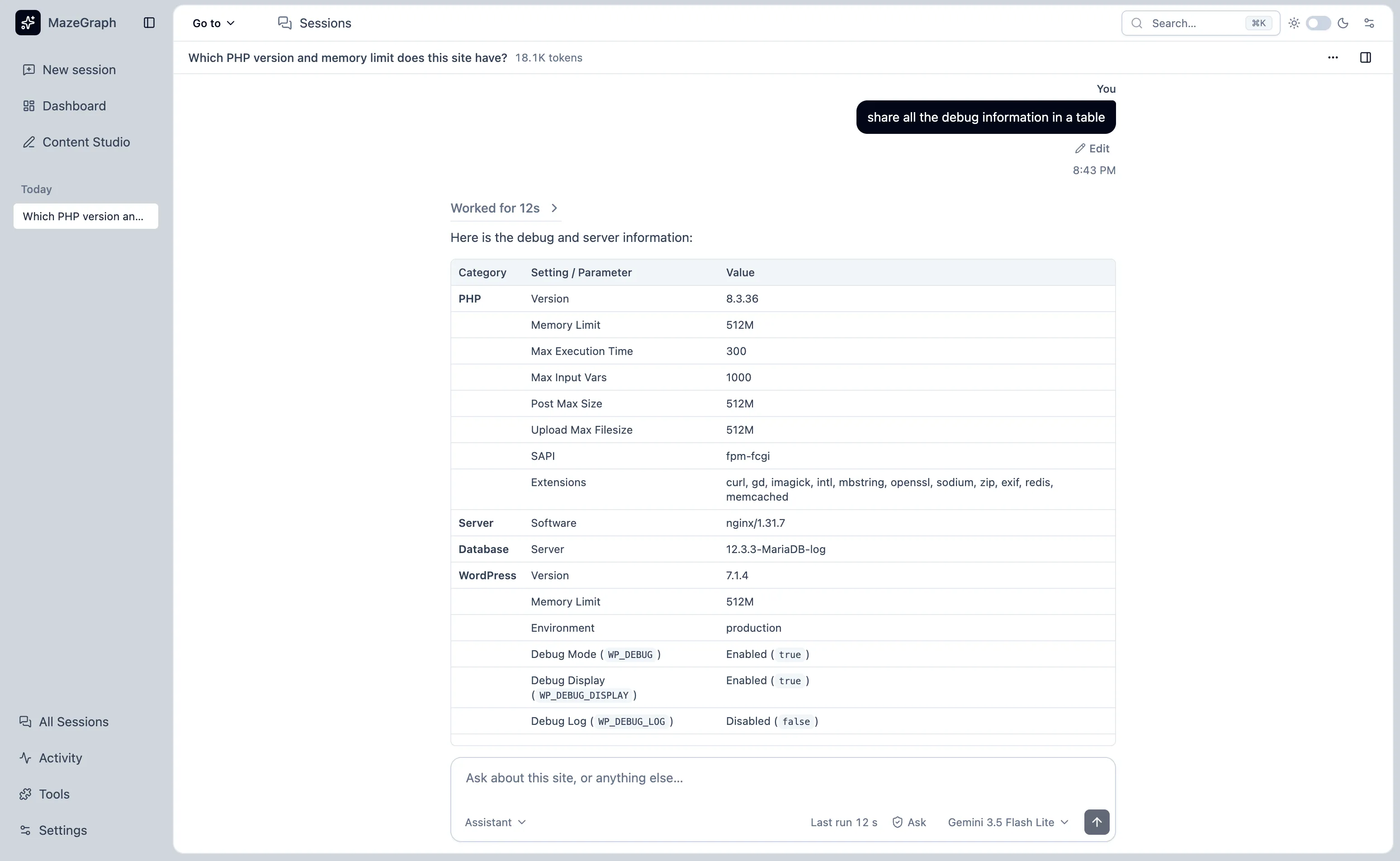
- Site-aware conversations
- Ask about your WordPress site and use the tools enabled by its administrator and allowed by your role.
- Sessions you can manage
- Search, rename, pin, archive, restore, export as JSONL, or delete conversations.
- Assistants and models
- Choose an available assistant and a text model offered by the connected provider.
- Background replies
- Continue longer replies in the background, return to saved sessions, or summarize a long conversation.
Content Studio
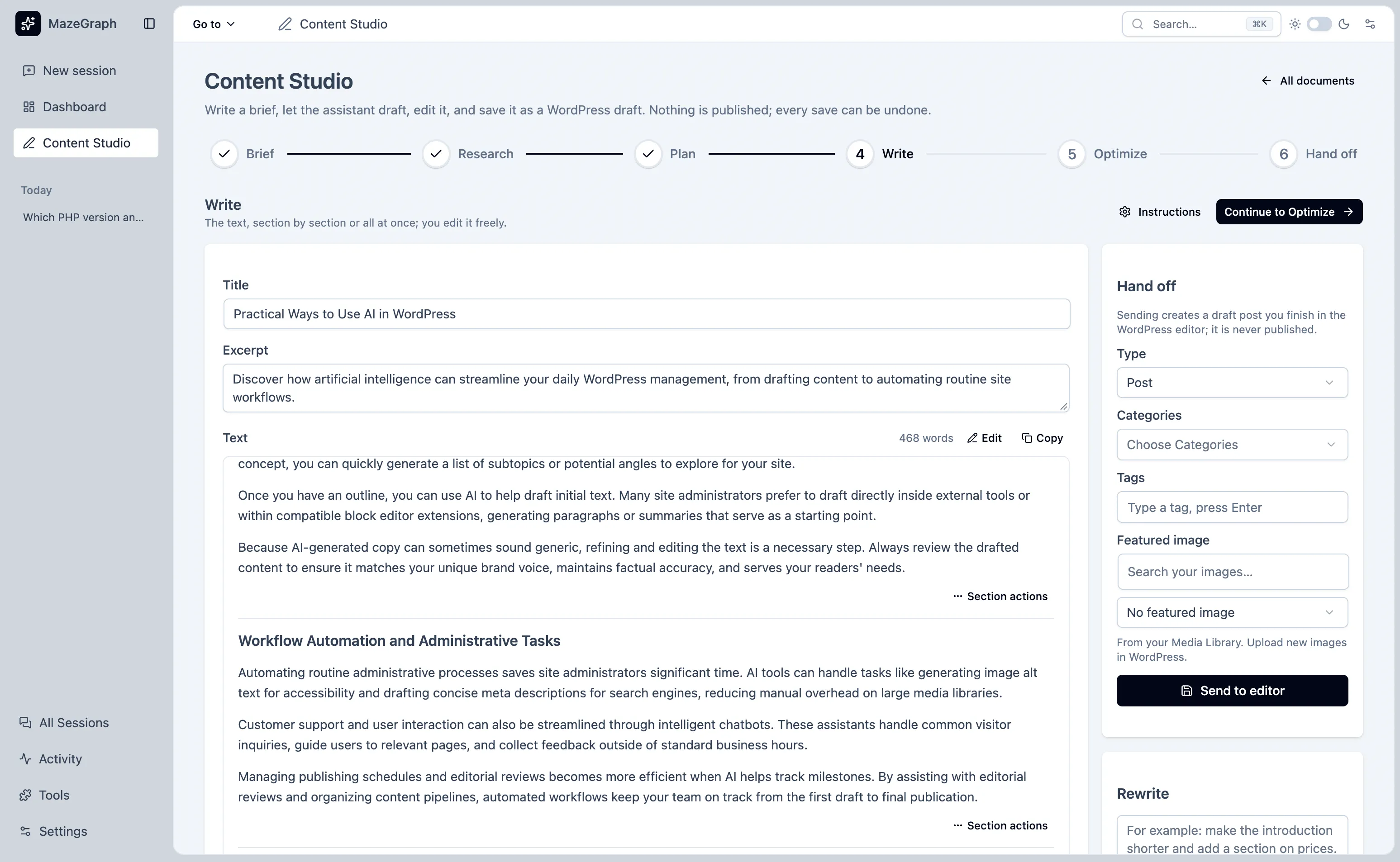
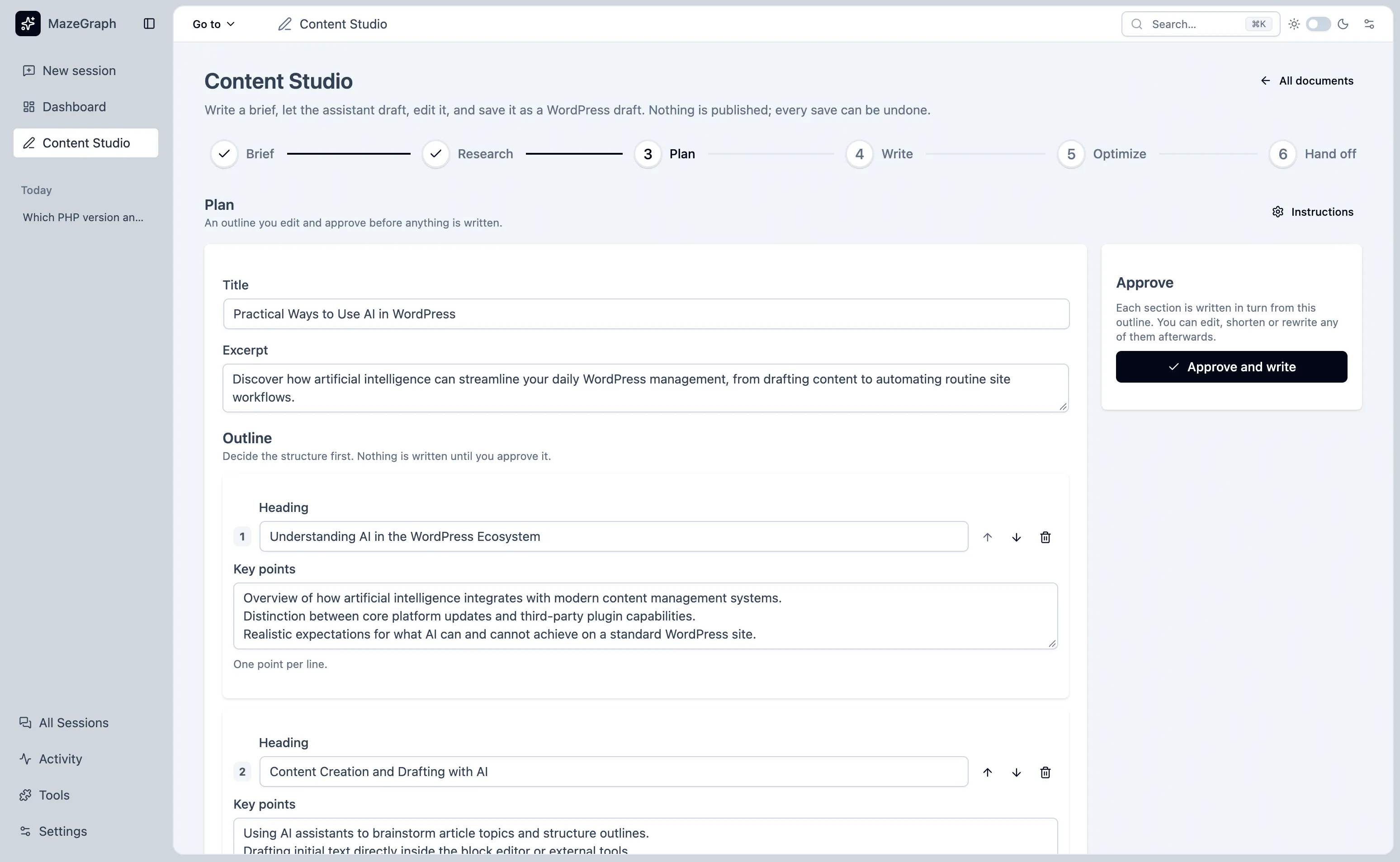
- A six-stage workflow
- Move through brief, research, plan, write, optimize, and hand-off. Research is optional.
- Approve the outline first
- Review and edit the outline before the assistant writes the draft.
- Keep editing in Studio
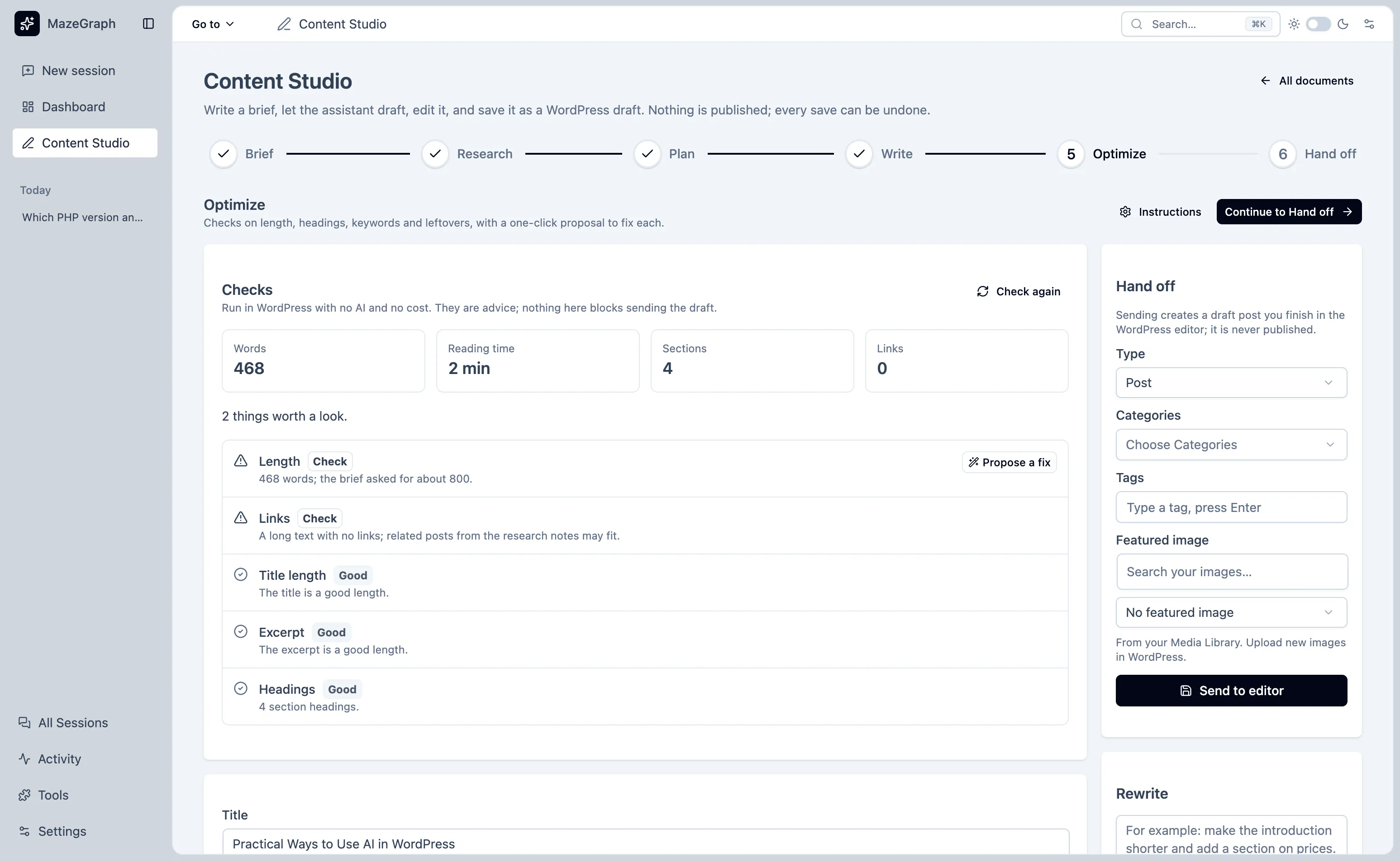
- Work on an autosaved copy, compare rewrite proposals, and accept only the changes you choose.
- Local checks and draft hand-off
- Run checks without an AI request, then send a draft to WordPress for review. MazeGraph does not publish posts.
Tools and controls
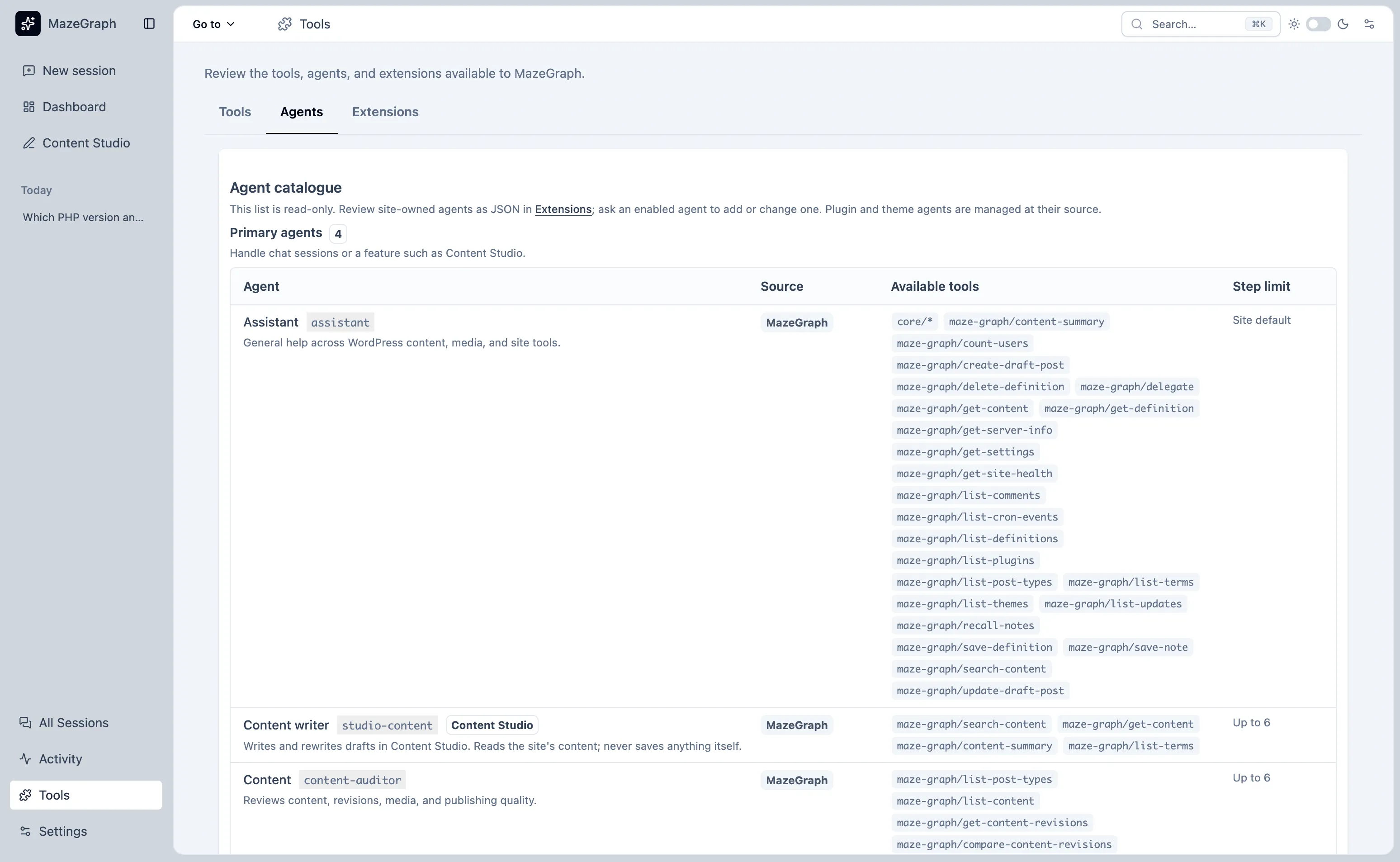
- Role-based access
- Choose which WordPress roles may use MazeGraph. Tools also check the current person’s WordPress permissions.
- Enabled tools
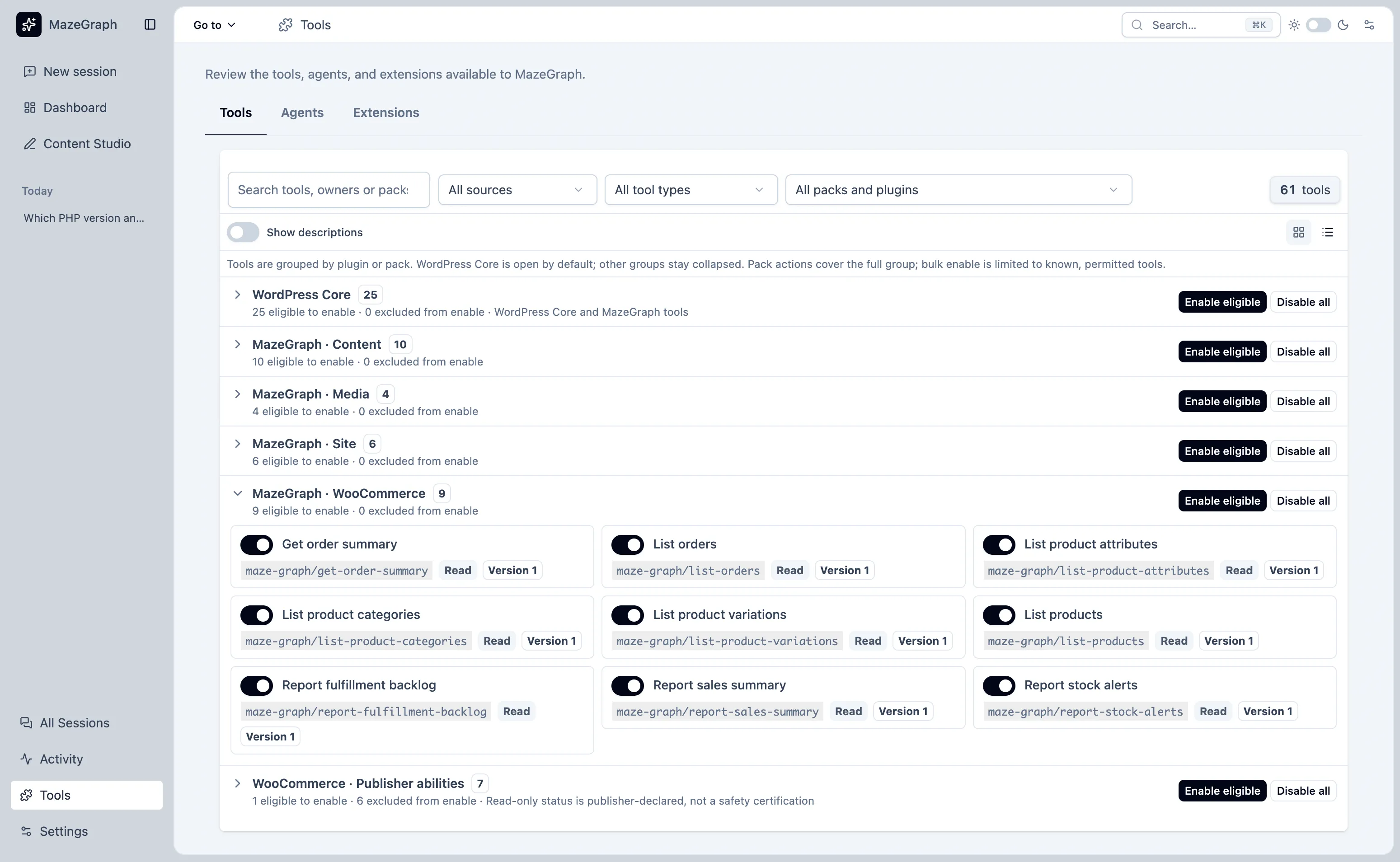
- Administrators choose which registered tools are available. Draft-writing tools are off by default.
- Approval modes and undo
- Ask reviews every assistant write. Auto skips prompts only for marked draft operations; Full may skip them for undoable writes when policy allows. Supported changes are recorded in Activity.
- Instructions and limits
- Set site and personal instructions, daily token and message limits, and a per-reply step limit.
Activity and privacy
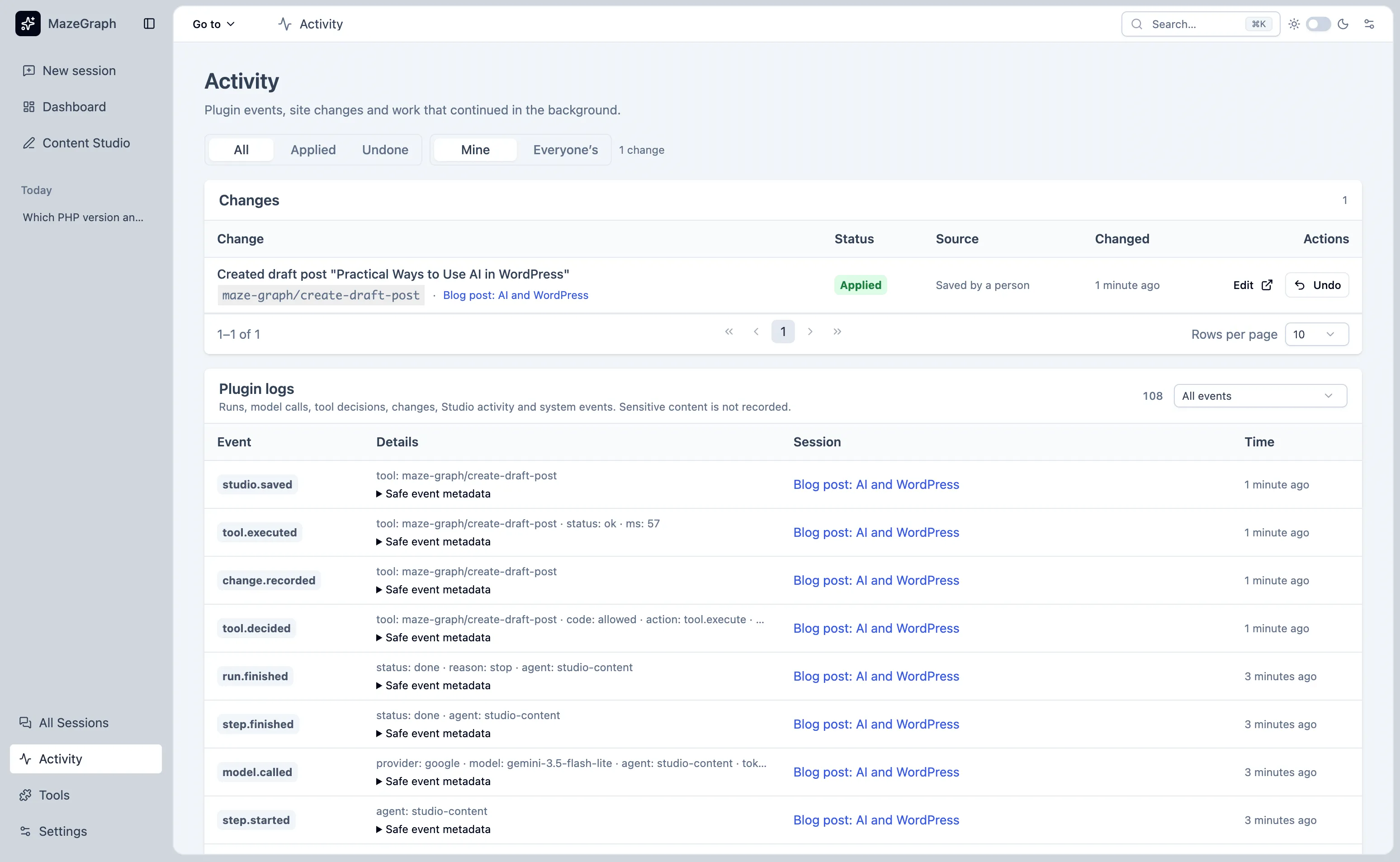
- Review and undo
- Review recorded actions and background work, then undo eligible changes.
- Usage summaries
- View token totals by day, model, and person.
- Retention controls
- Session retention is off by default. Activity retention can be set from 7 to 365 days; daily Usage summaries are kept for up to 400 days.
- WordPress privacy tools
- MazeGraph data is included in WordPress personal-data export and erasure. The plugin sends no chat data or usage analytics to MazeWP.
WordPress integrations
- WordPress AI Connectors
- Use a compatible provider configured in Settings → Connectors. MazeGraph does not include an AI provider or API key.
- WooCommerce tools
- Review products, orders, stock, and sales; optional write tools can add private order notes, change order status, and create, update, or trash simple products.
- Optional MCP access
- Share read-only tools through the WordPress MCP Adapter when it is installed and configured.
- Extension points
- Inspect registered tools and agents, use a maze-graph.json file or PHP Registrar, and extend behavior with hooks.
From brief to a draft you can review
Start with a brief
Describe the content you need
Set the purpose and context for a new Content Studio document.
Optional research
Gather context
Use available site information to inform the draft.
Review the plan
Approve the outline
Edit the proposed structure before the assistant writes.
Write and check
Revise the working copy
Edit the draft, compare rewrite proposals, and run local checks.
Before hand-off
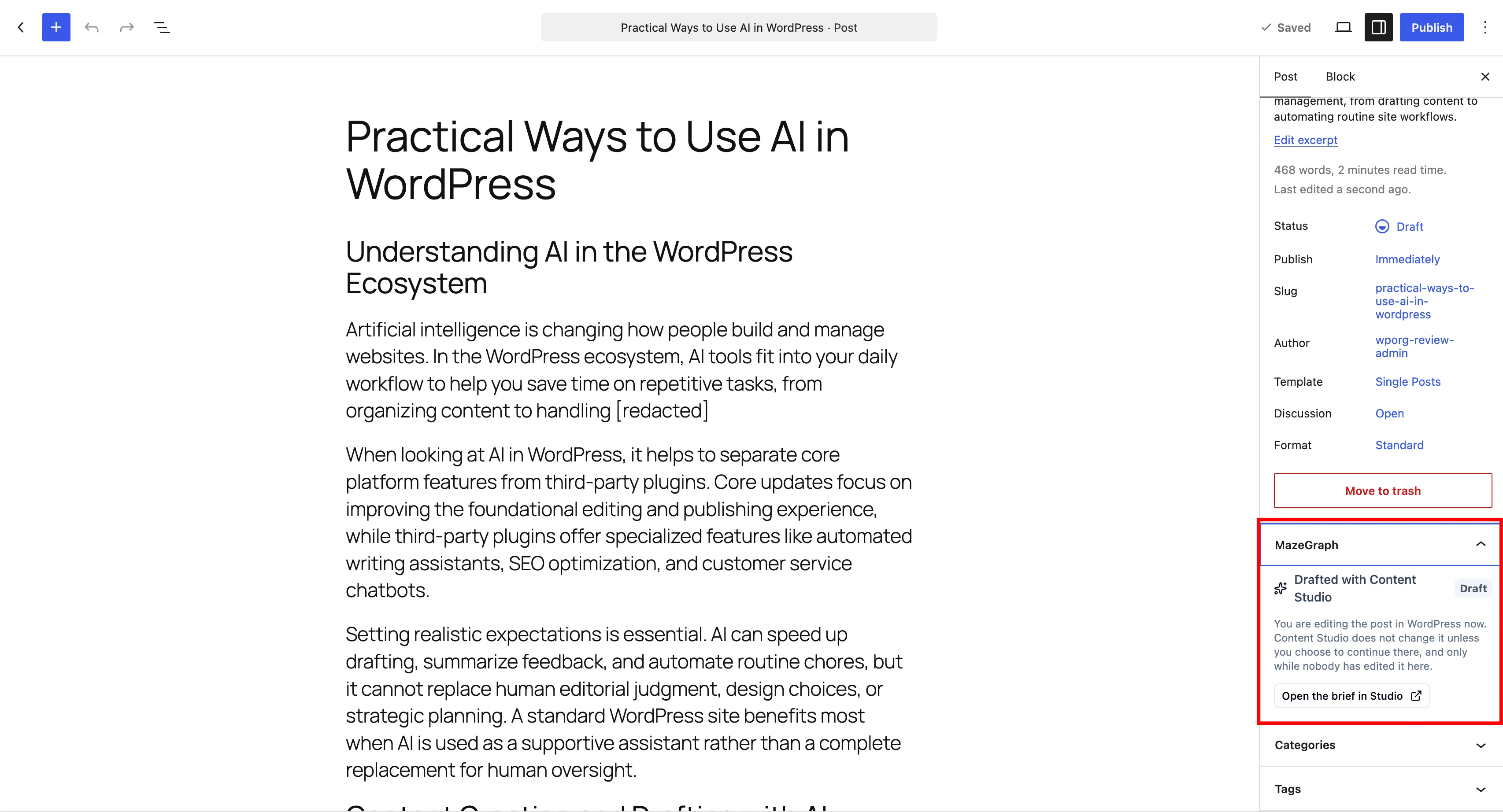
Send a WordPress draft
Review the result in the editor. MazeGraph does not publish posts.
The screens
MazeGraph inside the WordPress dashboard.
Which provider can I connect?
MazeGraph uses compatible providers configured through WordPress Connectors. Look for a connector for OpenAI, Anthropic, or Google Gemini, then review the provider’s terms and usage charges in the documentation before connecting it.
Which provider do you plan to use?
Have you installed a compatible WordPress Connector?
Have you reviewed that provider’s terms and charges?
What will you use MazeGraph for?
OpenAI-compatible Connector
A compatible WordPress Connector is required. Review its provider terms, data handling, and usage charges before connecting.
Setup guide: OpenAI-compatible ConnectorAnthropic-compatible Connector
A compatible WordPress Connector is required. Review its provider terms, data handling, and usage charges before connecting.
Setup guide: Anthropic-compatible ConnectorGoogle-compatible Connector
A compatible WordPress Connector is required. Review its provider terms, data handling, and usage charges before connecting.
Setup guide: Google-compatible ConnectorAnother compatible provider
A compatible WordPress Connector is required. Review its provider terms, data handling, and usage charges before connecting.
Setup guide: Another compatible provider
MAZEGRAPH 1.3.0
Public releaseMore control for every stage of WordPress AI work.
MazeGraph is available on WordPress.org. Connect your provider, choose enabled tools, and set how assistant writes are reviewed with Ask, Auto, and Full.
Permission-aware tools
Use site tools that are enabled by an administrator and permitted for your WordPress role.
Sessions and history
Return to saved conversations, edit the last message, or regenerate a reply.
Content Studio
Move from a brief through an approved outline to a draft you can review.
Activity records
Review tool actions and background work without storing message content in activity metadata.
Approval controls
Assistant writes follow the session mode and site policy; supported changes can be undone.
Usage summaries
Review token totals by day, model, and person.
Provider choice
Connect a compatible provider through WordPress Connectors.
Data retention
Set session and activity retention and use WordPress export and erasure controls.