

A clear first setup for MazeGraph
Install the public plugin, connect a provider through WordPress, and review who can use the workspace and which tools are available.
MazeGraph first setup steps
- Install
- Connect
- Review access
- Start safely
Set up the workspace
Install MazeGraph
Add MazeGraph AI Workspace from WordPress.org and activate it.
Connect a provider
Install a compatible WordPress AI Connector and configure it in Settings → Connectors.
Review workspace access
Choose which roles may use MazeGraph and which tools are enabled.
Start with a read-only question
Read the provider data notice and accept it before sending your first message.
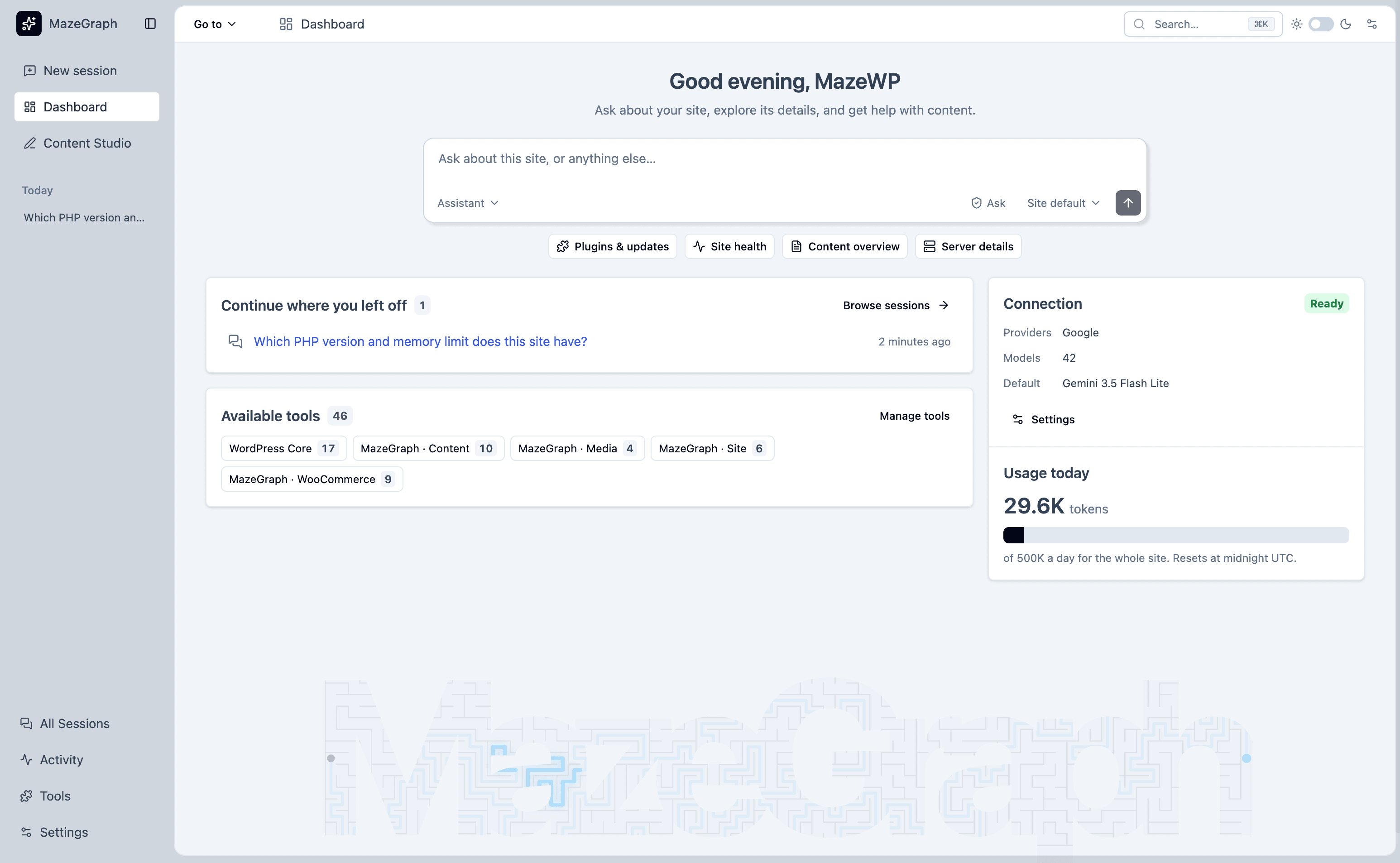
User documentation and support
Follow the user guide for installation, provider setup, workspace sessions, Content Studio, and data controls. The WordPress.org support forum is available for product questions.