

MazeGraph 1.3.0Free on WordPress: WooCommerce tools, an assistant picker and a command palette.Visit changelogPro: coming soon
Skip to content

Search MazeGraph

Search the documentation

From a WordPress question to a reviewed draft

MazeGraph keeps provider choice, tool access, approval, and the final WordPress draft in view throughout the workflow.

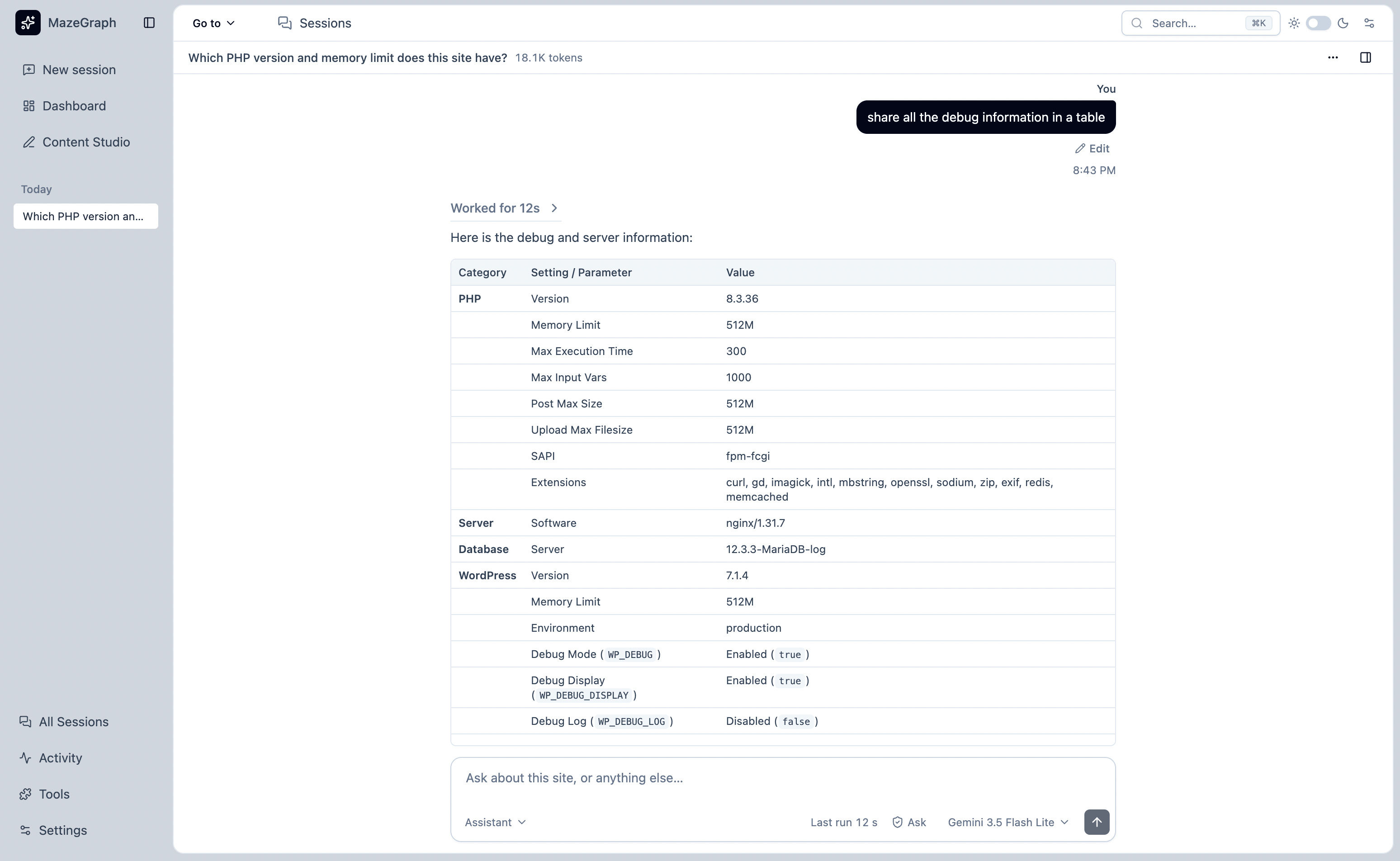
MazeGraph conversation with site tools and an assistant response

The main workflows, step by step

Workspace conversation

Ask about your site and inspect the available tools and their results.

  1. Start a session (Ask about your site)

    Read the provider data notice and accept it before the first message.

  2. Use enabled tools (Use enabled tools)

    Tools check the current person’s WordPress permissions.

  3. Review the answer (Review and hand off)

    Inspect the result and decide what to do next.
Content Studio

Move from an idea to a WordPress draft while keeping the outline and text editable.

  1. Describe the brief (Write a brief)

    Set the topic and goals for the document.

  2. Approve the outline (Approve an outline)

    Edit the proposed structure before writing.

  3. Write and revise (Edit a draft)

    Edit the autosaved working copy and review rewrite proposals.

  4. Run checks and hand off (Review and hand off)

    Send a draft to WordPress for review. Nothing is published automatically.

Assistant write

An administrator enables write tools; the session mode and policy determine when an assistant call waits for approval.

  1. Check access (Use enabled tools)

    The administrator enables the tool; the person’s WordPress role is checked.

  2. Review the write (Review and hand off)

    Ask waits for approval for every write; Auto permits only marked draft operations without a prompt, and Full may skip prompts for undoable writes when policy allows.

  3. Review Activity (Review and hand off)

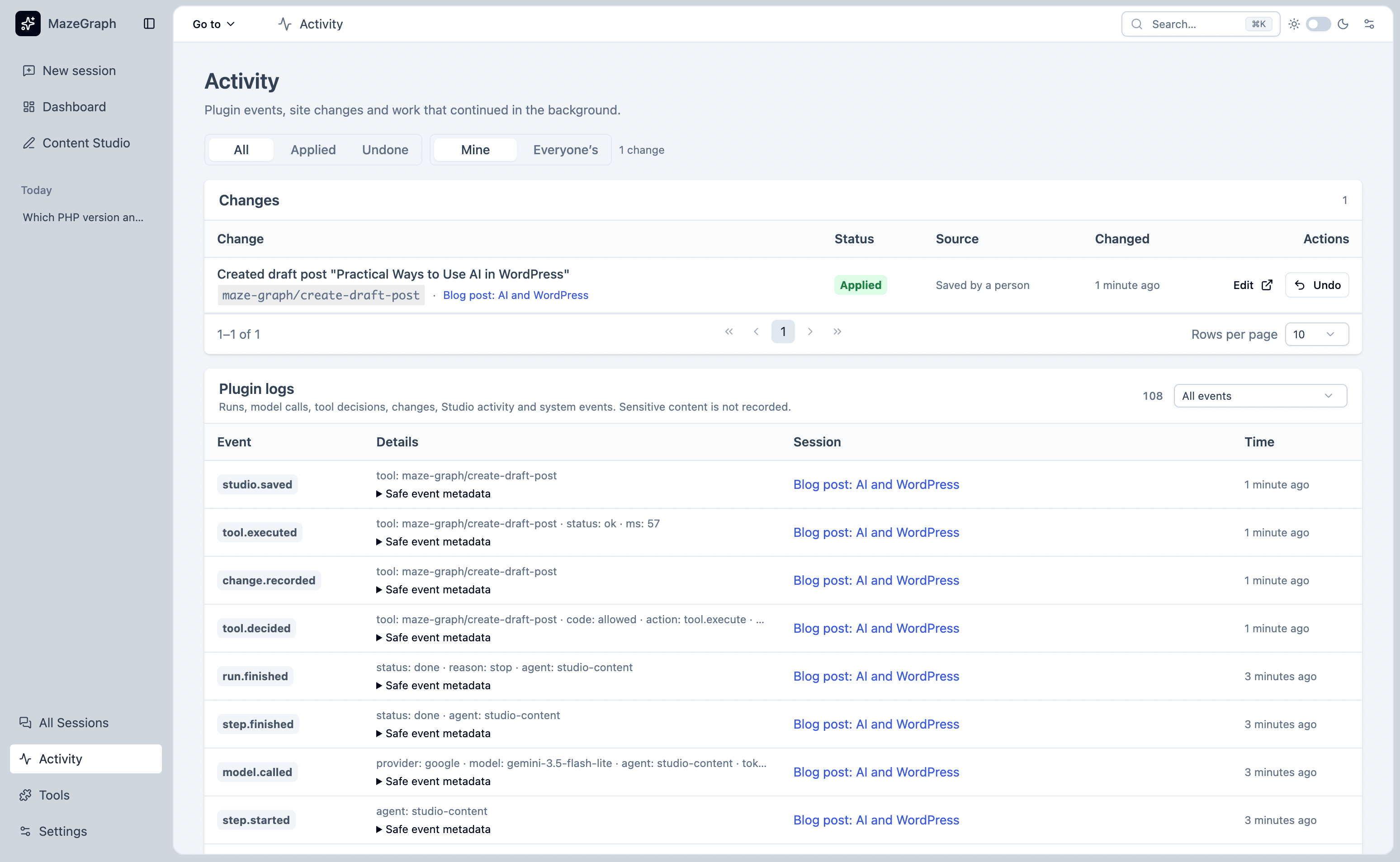
    See the recorded change and undo it where supported.

From brief to WordPress draft

  1. Start with a brief

    Describe the content you need

    Set the purpose and context for a new Content Studio document.

  2. Optional research

    Gather context

    Use available site information to inform the draft.

  3. Review the plan

    Approve the outline

    Edit the proposed structure before the assistant writes.

  4. Write and check

    Revise the working copy

    Edit the draft, compare rewrite proposals, and run local checks.

  5. Before hand-off

    Send a WordPress draft

    Review the result in the editor. MazeGraph does not publish posts.

What the provider receives

A request may include your message, relevant conversation history, instructions, tool descriptions, and tool results. Those results may contain information from the site. Background replies send the context they need. A compatible Connector may also contact its provider to check availability or list models.

What stays under your site controls

MazeGraph stores sessions and Studio documents in your site database. Notes use WordPress options. The plugin sends no chat data or usage analytics to MazeWP. WordPress personal-data export and erasure include MazeGraph’s personal records.

MazeGraph Activity with recorded changes and event metadata

Want the user guide? Read the Content Studio and workspace documentation for setup, sessions, tools, and data controls.